Pages built from a table share one layout: every item page, every creature page looks the same, and one edit changes all of them. A page-only block is the exception: a block that one page shows and no other page does, such as a note on a single item.
This guide assumes the pages already use a shared layout.
What they are
A shared layout has one or more page content areas. Everything outside them comes from the layout and is the same on every page. Whatever you put inside one belongs to that page alone.
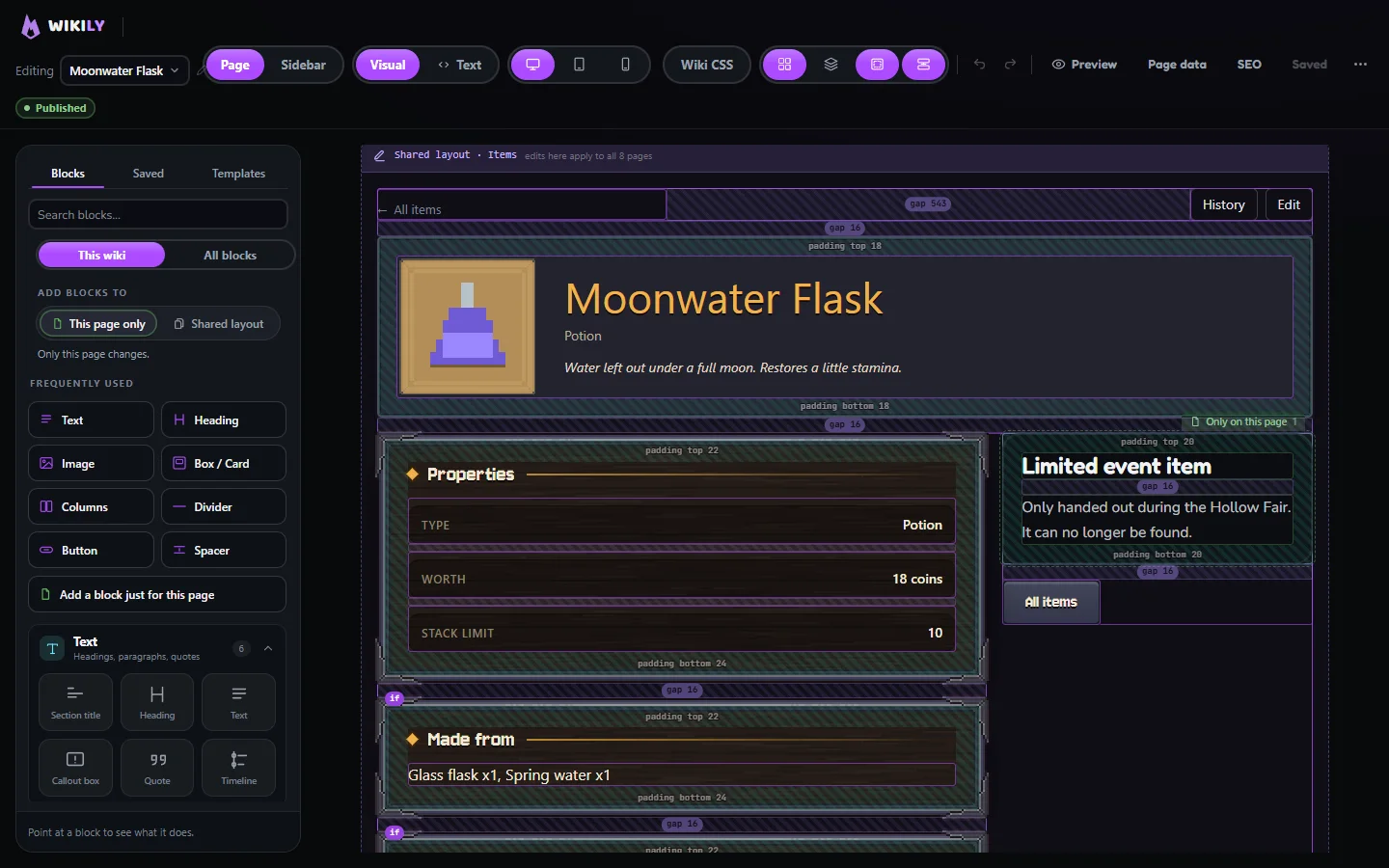
Shared layoutPurple in the editor. One block, shown on every page that uses the layout.Use for what every page needs.
Only on this pageGreen in the editor. Saved with the page itself, shown nowhere else.Use for what one page needs.
The green outline is this page's own area. The label says how many blocks it holds.
When to use them
A fact only one entry hasWhere a rare item drops, a quest that only one creature starts, a patch note for one weapon.
Extra media for one pageA video or a map that only makes sense on that page.
Not for everyoneIf most pages need the same block, put it in the shared layout instead and let the table fill in the values.
Not for fixing dataA wrong number belongs in the table. A page-only block next to it would leave the table wrong for everything else that reads it.
Add one
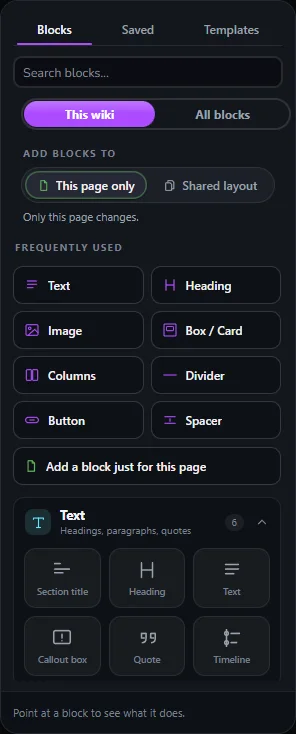
Open the page in the editor. On a page with a shared layout, the block picker starts with Add blocks to set to This page only, so a picked block goes into the page's own area, never into the layout.
Open Blocks. Under the basic blocks, and again in Layout, click Add a block just for this page. It adds a text block to the page's own area.
Or pick any other block while This page only is on. It lands after the selected page block, or at the end of the page's area.
Save the page. It is an ordinary page edit, with history and the wiki's review rules.
Add blocks to: This page only, and the entry under the basic blocks.
Switch Add blocks to to Shared layout only when the block should appear on every page. People who may not change the shared layout cannot switch.
You can also drag any block into the green area, or paste blocks while a page block is selected.
Find them on a page
Three marks tell the two kinds apart while you edit:
The green areaLabelled Only on this page, with the number of blocks in it. Blocks inside take a green outline and name tag.
The name tagBlocks in the green area have a green name tag. A shared block this page hides shows a crossed-out eye in its tag.
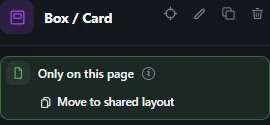
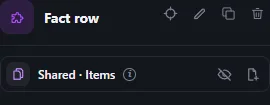
The properties panelSelect a block: the line under its name says Only on this page, or Shared and the layout's name. The i beside it explains more.
A page block: it shows here only, and can move into the shared layout.
See every page that has them
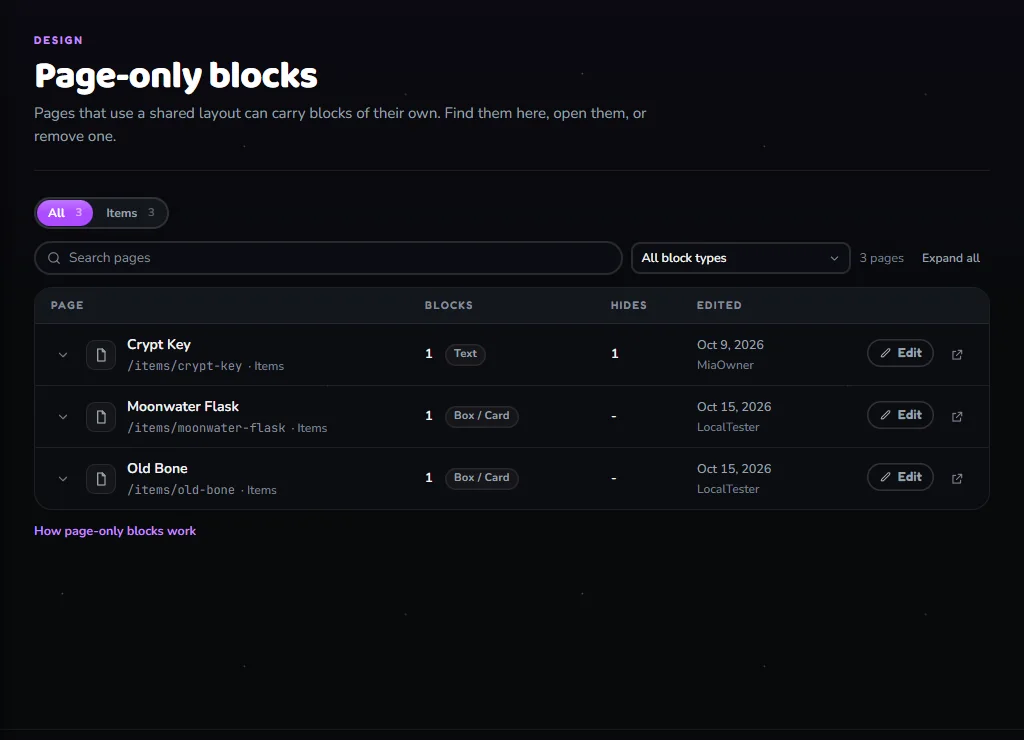
Open Design to Page-only blocks. It lists every page on a shared layout that has blocks of its own, or hides a shared one, across the whole wiki.
A tab per shared layout with its count, then a table: each page's blocks, the shared blocks it hides, and who edited it last. Open a row to see each block.
Pick a layout tab to see only its pages.
Search for a page by name, or filter by block type. Long lists come 25 pages at a time.
Open a row with its arrow to see each block: its type, area, position and text.
Edit on a block opens the editor with that block selected. Open shows the page as readers see it.
Remove takes the block off that page only. The page history keeps it, so it can be restored.
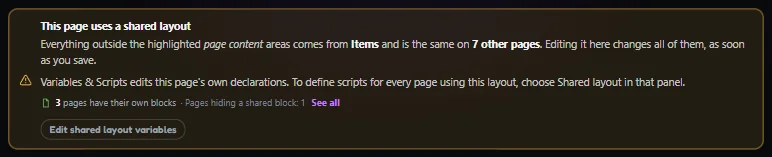
The same count sits in the shared layout's own editor and in the notice on every page that uses it: 12 pages have their own blocks, with See all for the list.
The count in the shared layout notice opens the same list for that layout.
Move, hide or remove
Select a block and use the buttons in the line under its name. Hover a button to see what it does.
Move to shared layoutOn a page block. It moves into the shared layout right after the page's area; after saving, every page shows it. Needs permission to change the shared layout.
Hide on this pageOn a shared block. This page stops showing it, in every language; all other pages keep it. It applies at once.
Copy to this page onlyOn a shared block. An editable copy goes into the page's own area. Hide the shared one if the copy should replace it.
Show on this pageOn a hidden shared block, in the editor or in the overview. The block comes back on this page.
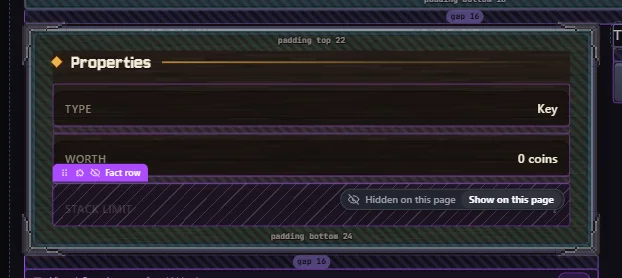
A shared block: hide it on this page, or make a page-only copy.A hidden shared block stays editable in the editor, striped, with a way back.
A page content area, or a block that holds one, cannot be hidden: that would hide the page's own blocks as well.
With your AI assistant (MCP)
An assistant connected through MCP access can do the same things:
pages_read page_blocksThe overview: counts per shared layout, then every page with its own blocks. With a page slug, that page in full, including the shared blocks it could hide.
pages_write editAdd, change or remove a page's own blocks like any page edit.
pages_write hide_shared / show_sharedTurn one shared block off or back on for one page.
For scripts there is a content API: GET /api/wikis/<wiki>/page-blocks lists them, and /pages/<page>/page-blocks reads, adds, updates and removes one page's blocks.
Good to know
LanguagesEach language version of a page has its own page-only blocks. Hidden shared blocks apply to every language of the page.
ReviewPage-only blocks follow the page's review rules. Hiding a shared block waits for review the same way for members whose edits are reviewed.
Leaving the layoutIf a page leaves its shared layout, its own blocks stay in place and hidden shared blocks stay out.
Readers see the result onlyThe green and purple marks exist only in the editor. Readers see the page with its own blocks in place.