Members and roles
Updated 2026-10-25
Members are the people who help you run your wiki. You add them by their Wikily username and give each one a role. The role decides what they can do. For how a team works together (review, history), see Working with other people.
Where to find it
Open your wiki and go to Manage › Moderation. Scroll past the review queue to Members. It lists everyone with a role on the wiki, with their review setting and their role. Wiki admins and owners can open it.
Add a member
- Click Add member.
- Type the person's exact Wikily username, as it shows on their profile. Upper and lower case don't matter. The account appears with its picture and username, and whether it is already a member.
- Pick a role.
- Click Add @username as …. The button always says what will happen.
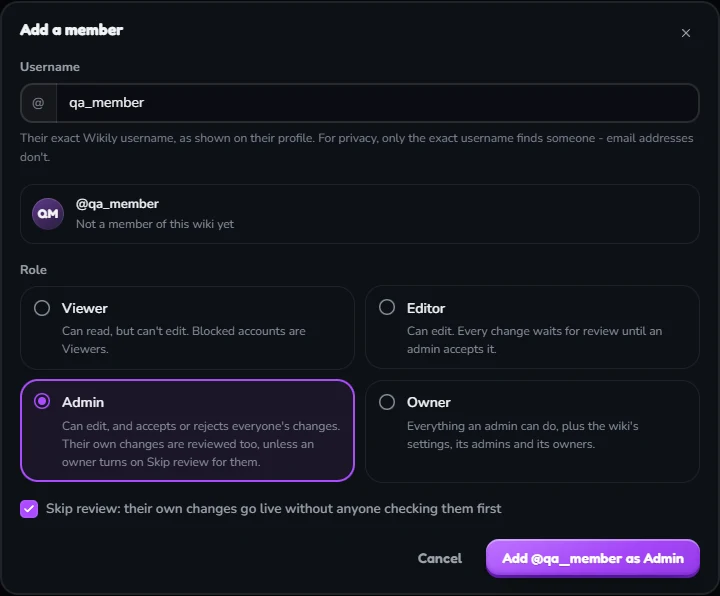
- 1Type the exact username. Email addresses are not searched.
- 2The account that was found: picture, username and whether it is already a member.
- 3The role. Each card says in one line what the role can do.
- 4Skip review: only when an owner adds an admin or owner.
- 5The button names the person and the role. Nothing changes before you click it.
Someone who is already a member can be found the same way: the dialog then changes their role instead.
The four roles
With public editing on (Manage › Settings), anyone signed in can already suggest edits; adding them as Editor puts them on your list. With public editing off, only members can edit, so add your helpers as Editor.
Who can give which role
Making someone an Owner asks for more: the dialog explains that an owner has full control, including over the other owners, and the button only works after you type the person's username.
Nobody can change their own role, and a wiki always keeps at least one owner: the last owner can't be made an admin or removed.
Change or remove a role
- In the members list, pick a new role in the person's Role menu. A short confirmation says what the new role can do.
- To take someone off the list, click the bin icon next to their role and confirm. With public editing on they can still suggest edits like anyone signed in; to stop that, make them Viewer instead.
- For admins and owners, an owner can also switch Review between Use review and Skip review.
From the review queue
Next to each author in the review queue there is a role button beside Block. It shows what the author is on your wiki (a role, or Not a member). Open it to make them Viewer or Editor; owners also see Admin and Owner. The same confirmations apply.
Block does more than Make viewer: it also rejects everything that person still has waiting. How the queue itself works: Reviewing edits.
Privacy
Members are found and shown by their public username only. Email addresses are never shown and can't be searched, and there is no list of accounts to browse: only an exact username finds someone. Every change to a member is recorded with who made it.