

How to Transfer a Palworld World to a Dedicated Server
Your world, its bases and the Pals in it move to the server, and so do the players' characters. Only the player who hosted the co-op game has to start a new one.
Back up first
Copy the world folder on your PC (below) somewhere safe. If the server already has a world, copy its Pal\Saved\SaveGames folder too.
Find the world on your PC
%LocalAppData%\Pal\Saved\SaveGamesOpen that path in Windows Explorer. The folder you see there is your Steam ID. Every world you have played has its own folder inside it, named with a long code of letters and digits. That whole folder is what you move.
Level.sav in it is the world itself. Next to it are LevelMeta.sav, LocalData.sav and WorldOption.sav, a backup folder, and the Players folder with one .sav file per character.
Put it on your own server
1. Stop the server. 2. Copy the whole world folder into Pal\Saved\SaveGames\0 on the server. 3. Tell the server which world to load: the line DedicatedServerName= in GameUserSettings.ini must hold the world folder's name. 4. Start the server.
DedicatedServerName=<the world folder's name>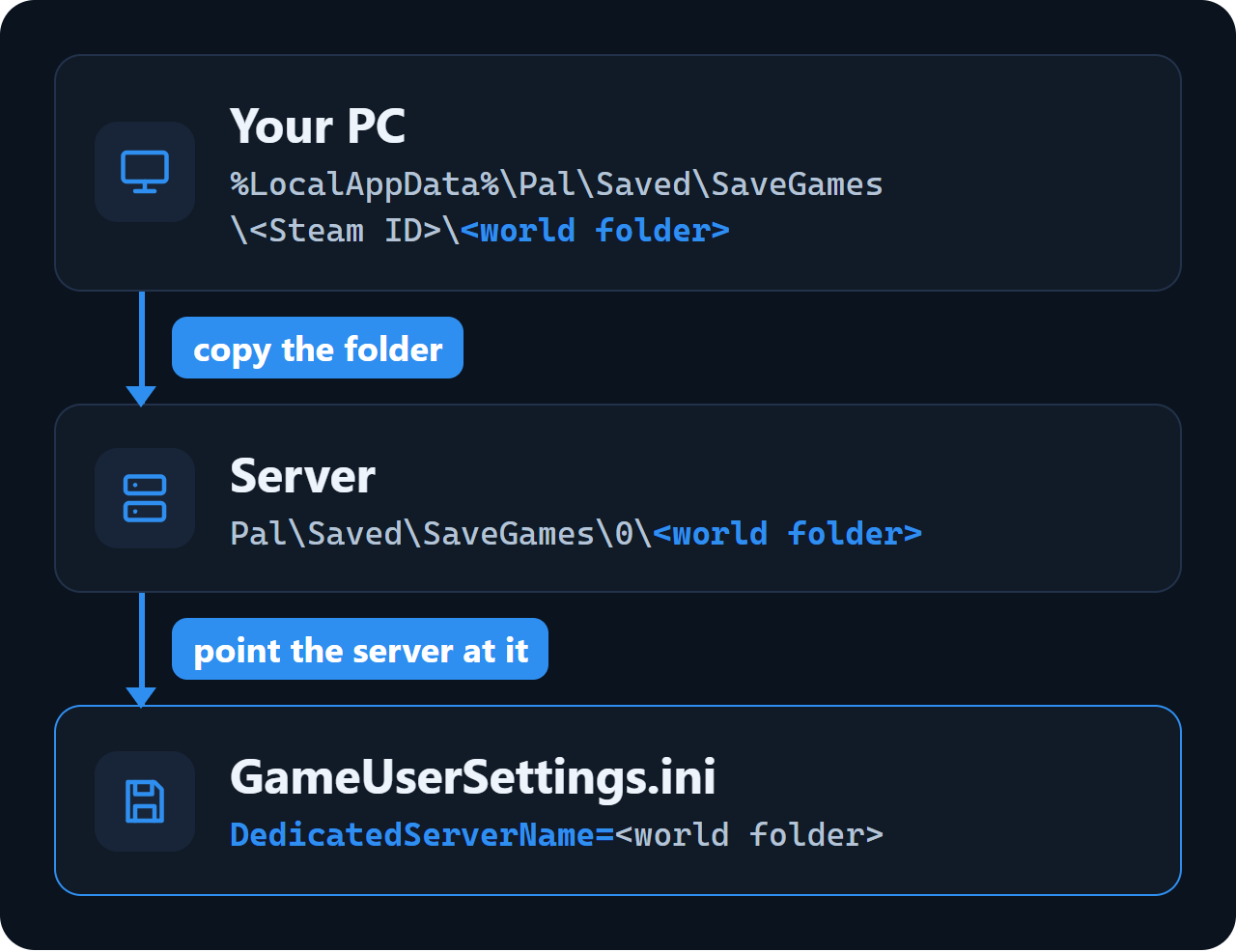
GameUserSettings.ini is in Pal\Saved\Config\WindowsServer on a Windows server and in Pal/Saved/Config/LinuxServer on a Linux server. With the name set, the server loads your world instead of making a new one.
Put it on a Wikily Servers server
1. Stop the server in the panel. 2. On your PC, pack the world folder into a .zip (up to 50 MB). 3. In the Files tab, open Pal/Saved/SaveGames/0, drop the .zip in and choose Unpack.
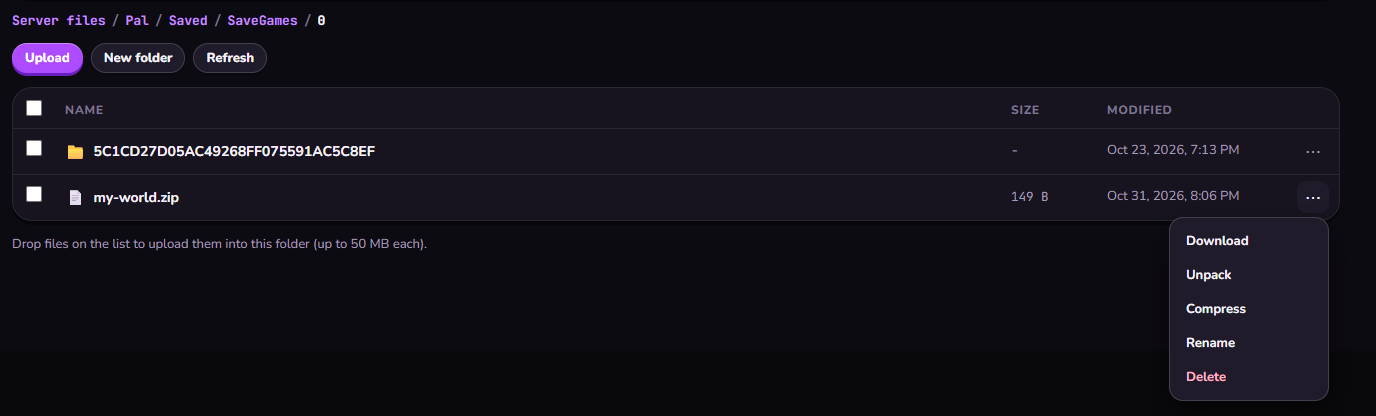
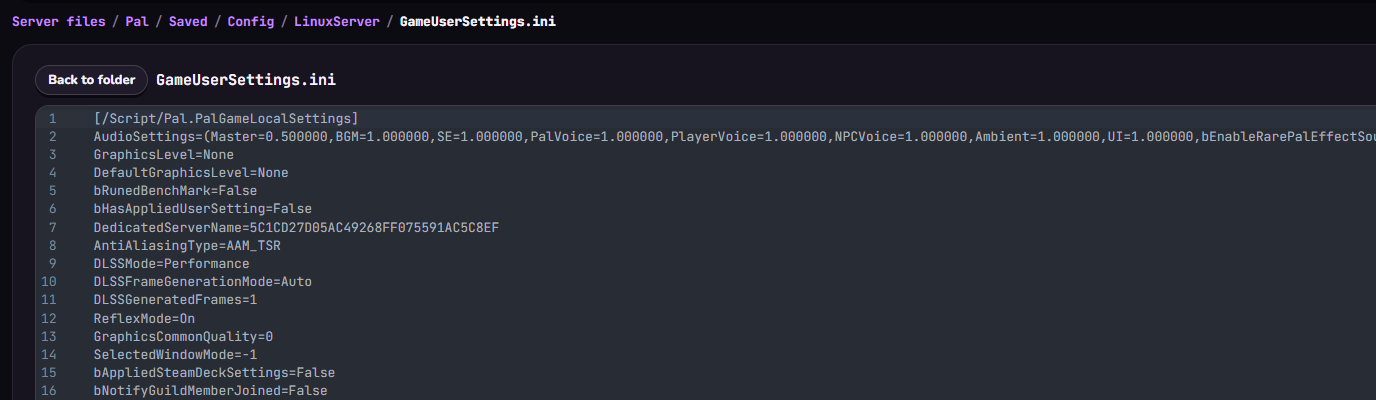
4. Go to the Config folder, edit GameUserSettings.ini so DedicatedServerName= holds the name of the folder you unpacked, and save. 5. Start the server.
The host's character
In a co-op game the host's character is saved as Players\00000000000000000000000000000001.sav. A dedicated server does not give the host that slot back: the host joins as a new player and creates a new character, while the old file stays in the save.
All other players carry on with the characters they had.